Your first crew in five minutes
Add two members with crew add main and crew add side, put them on one ship with crew ship join <member> home, then type crew to pick a member and start Claude.
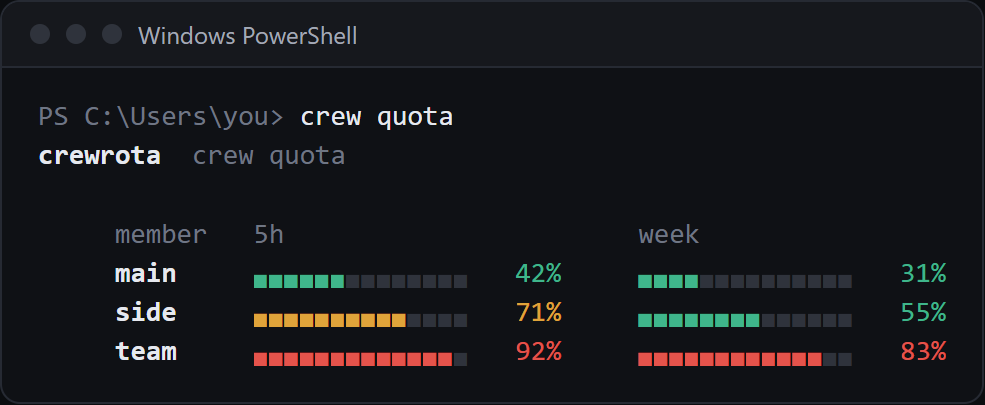
crew quota shows every member’s 5-hour and week use.
This page uses the example names main, side and home; pick your own.
It assumes crewrota is installed (Install crewrota).
Add your first member
Section titled “Add your first member”Run this in a terminal:
crew add maincrew makes the member folder (~/.crewrota/members/main, or %USERPROFILE%\.crewrota\members\main on Windows) and starts Claude Code inside it.
Claude Code asks you to log in: sign in with that member’s account in the browser, paste the code if it asks for one, and type /exit once you see Claude’s prompt.
crew then checks the login, prints Signed in as <email> (<organisation>) and asks one question:
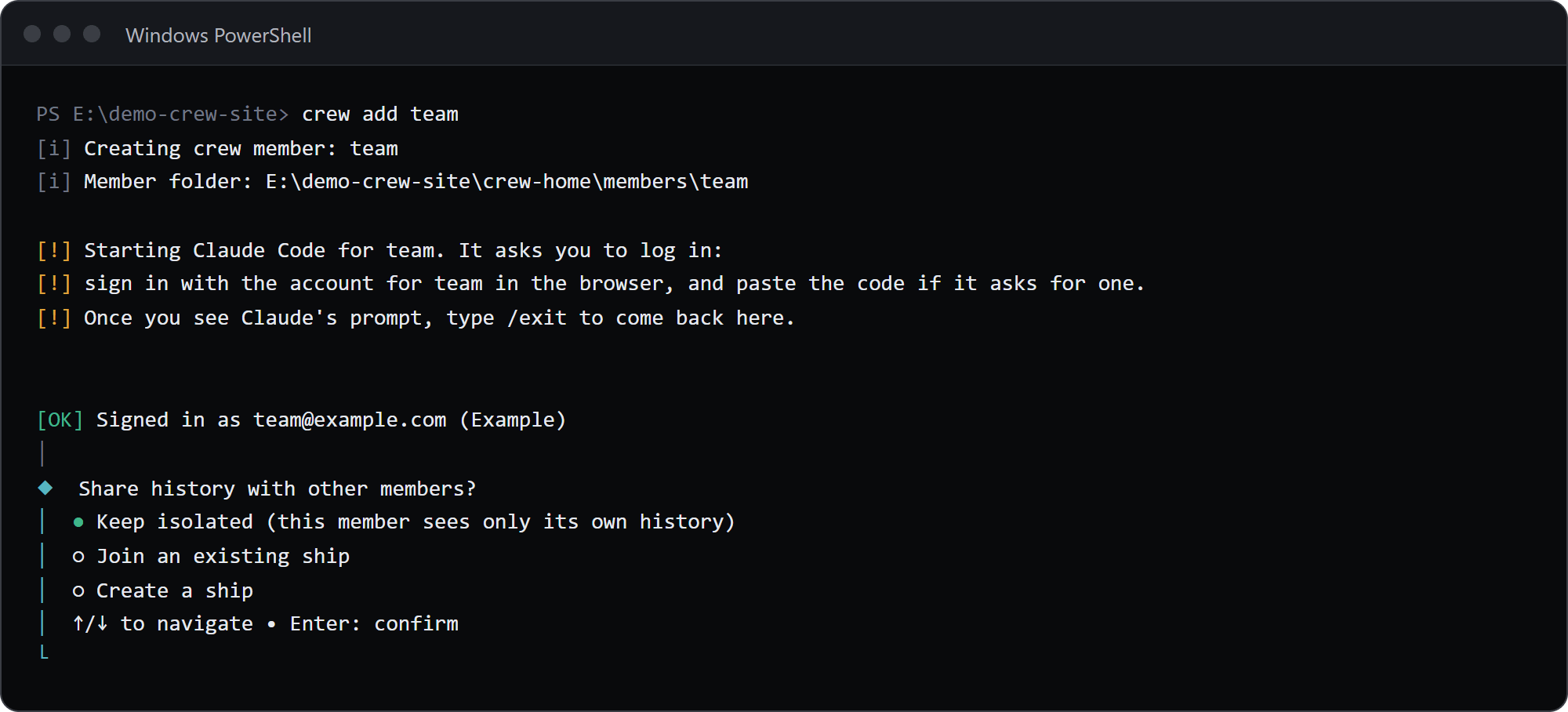
Pick Keep isolated for now; the next steps put both members on a ship. The first member you add becomes the current member.
crew add needs a terminal, because Claude Code’s login is interactive.
Without one it stops with crewrota: Adding a crew member needs a terminal. It runs Claude Code's own login.
Add a second member
Section titled “Add a second member”crew add sideSign in with a different account.
If you sign in to the same account another member already uses, crew warns [!] Crew member main is already signed in as main@example.com (personal).
See Add and manage crew members for --sso, --email and what happens when a login fails.
Check your crew:
crew list* main isolated no reading yet main@example.com (personal) side isolated no reading yet side@example.com (personal) team isolated no reading yet team@example.com (Example Co)This is a demo crew with a third member, team.
* marks the current member; “no reading yet” fills in after a member’s first usage reading.
Share history on a ship
Section titled “Share history on a ship”A ship lets members see each other’s sessions, so --resume in one member finds a session another member started.
crew ship create homecrew ship join main homecrew ship join side homeCreated ship home: E:\demo-crew-pages1\crew-home\ships\home\projectsmain shares history through ship home.If a member already has history, crew copies it into the ship and keeps the original beside it, printing [i] Copied this member's history into the ship. The original folder is kept at ....
See Share history between members with a ship.
Start Claude from the menu
Section titled “Start Claude from the menu”crew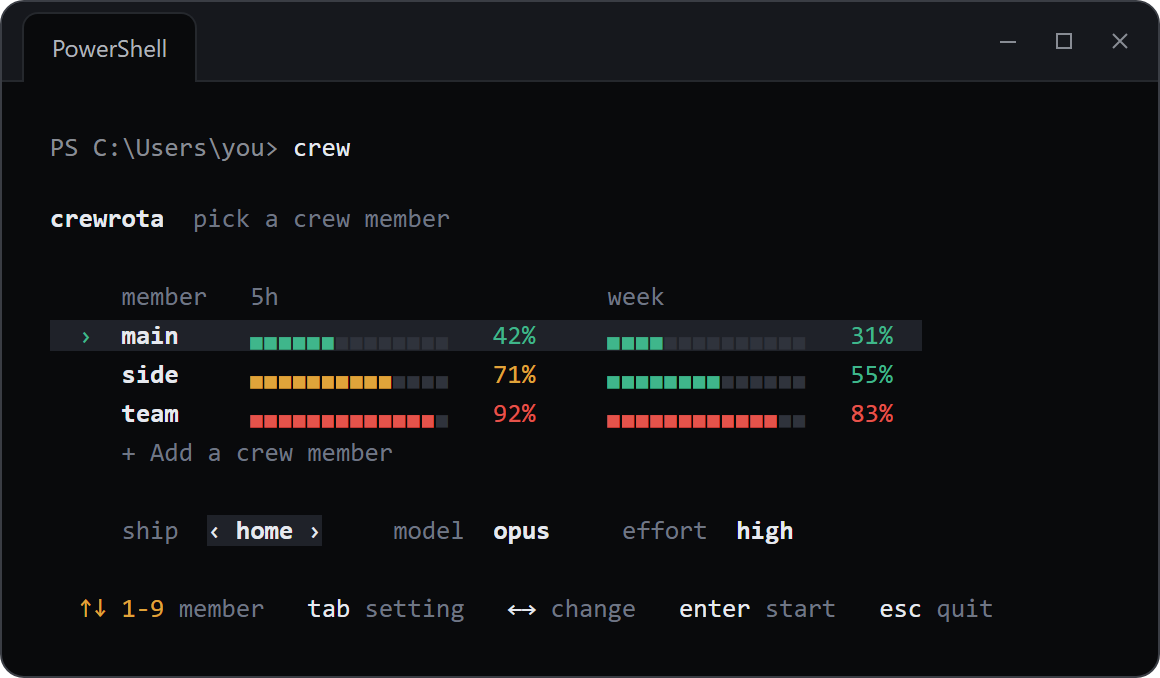
| Key | What it does |
|---|---|
| Up and down, or 1 to 9 | Pick the member |
| Tab (Shift+Tab back) | Pick the setting: ship, model or effort |
| Left and right | Change that setting |
| Enter | Start Claude as that member |
| Esc | Quit; crew prints Nothing launched. |
The settings line offers:
- Ship:
isolatedor any ship. Picking another ship joins or leaves it before Claude starts. - Model: Claude’s default,
fable,opus,sonnet, or “type a name”, which asksModel name (an alias or a full model name). - Effort: Claude’s default,
low,medium,high,xhighormax.
Each member remembers its last model and effort.
+ Add a crew member under the members runs the same steps as crew add.
With no members yet, or with the ACCESSIBLE environment variable set (to anything but empty, 0 or false), the menu asks step by step instead, which works better with a screen reader.
The first time you start a member, crew asks once whether sessions should skip Claude Code’s permission prompts; the default is no. See Choose whether Claude asks for permission.
Start a member without the menu
Section titled “Start a member without the menu”crew mainThis is short for crew run main and uses the member’s saved ship, model and effort.
Claude Code’s own flags go after --:
crew main -- --resume <session id>Without the --, crew reads the flag as its own and stops:
crewrota: Unknown option: --resumeCheck every member’s usage
Section titled “Check every member’s usage”crew quotacrewrota crew quota
member 5h week main ▖▖▖▖▖▖▖▖▖▖▖▖▖▖ 30% ▖▖▖▖▖▖▖▖▖▖▖▖▖▖ 55% side ▖▖▖▖▖▖▖▖▖▖▖▖▖▖ 30% ▖▖▖▖▖▖▖▖▖▖▖▖▖▖ 55% team ▖▖▖▖▖▖▖▖▖▖▖▖▖▖ 30% ▖▖▖▖▖▖▖▖▖▖▖▖▖▖ 55%In a terminal the bars are coloured green, amber and red; this copy was piped, so only the percentages carry the reading.
crew quota reads usage with quota-axi and sends no message.
To start an idle member’s 5-hour window, crew warmup sends each member one short message; it is the only command that sends one.
See Check every member’s usage.