Add and manage crew members
A crew member is one Claude login in its own folder.
Add one with crew add <member> in a terminal, switch the current one with crew use <member>, sign one in again with crew login <member>, and drop one with crew drop <member>.
Names use lowercase letters, digits and hyphens, start with a letter, and are at most 32 characters.
Add a member
Section titled “Add a member”crew add side- crew makes the folder
~/.crewrota/members/side(%USERPROFILE%\.crewrota\members\sideon Windows), with mode 0700 (only you can open it) on macOS and Linux. - It starts Claude Code in that folder. Claude Code asks you to log in: sign in in the browser, paste the code if it asks for one, then type
/exitonce you see Claude’s prompt. - It asks Claude Code whether the member is logged in, in that folder (
claude auth status). - It prints
[OK] Signed in as <email> (<organisation>), or(personal)when the account has no organisation. - It asks “Share history with other members?”: Keep isolated (the default), Join an existing ship (shown when you have one) or Create a ship.
- It prints
Crew member side is ready ...andStart it with: crew run side.
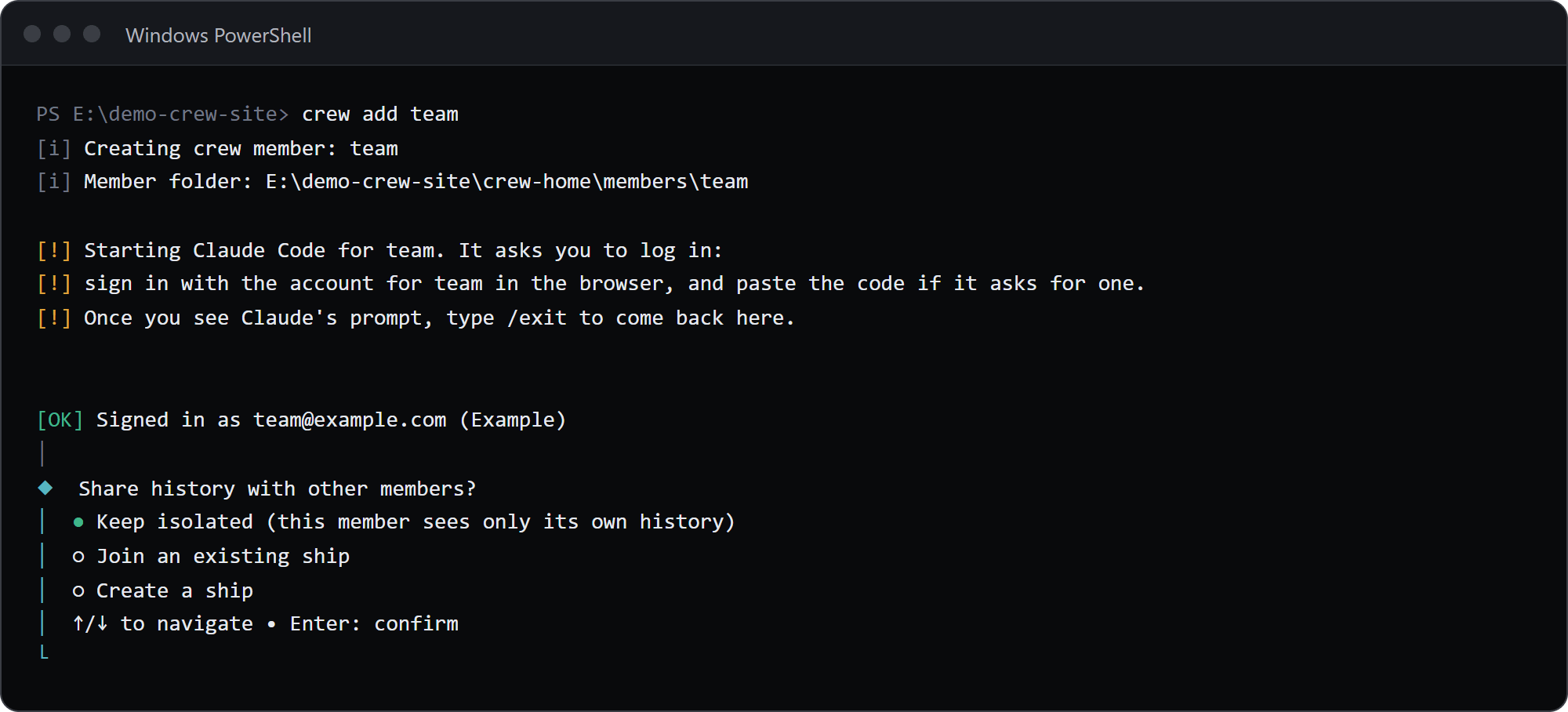
The first member you add becomes the current member; later ones do not.
Your main ~/.claude login is never touched.
Options
Section titled “Options”| Option | What it does |
|---|---|
--ship <ship> |
Join that ship instead of asking. If the ship does not exist, crew asks Ship <ship> doesn't exist. Create it? (Y/n) |
--sso |
Sign in with single sign-on, through claude auth login --sso |
--email <address> |
Pass that email to Claude Code’s login, through claude auth login --email <address> |
Without --sso or --email, crew starts plain claude and lets its first screen ask for the login; a pasted code works there.
When adding fails
Section titled “When adding fails”- No terminal.
crewrota: Adding a crew member needs a terminal. It runs Claude Code's own login.Run it in a terminal yourself; an agent or script cannot finish a browser login. - The name is taken.
crewrota: Crew member main already exists - A folder with that name is in the way.
<folder> already exists but is not a crew member. Move it away, or pick another name. - The login did not take. If Claude Code reports the member is not logged in, or reports a different config folder, crew removes the folder it just made and stops with
... Removed <folder>; no crew member was created.Nothing is left behind; runcrew addagain. - You cancel the ship question. crew removes the new folder and prints
Nothing created.
Two members on one account
Section titled “Two members on one account”If the new login has the same email and organisation as an existing member, crew still adds it but warns:
[!] Crew member main is already signed in as main@example.com (personal).If that was a mistake, sign one of them in to another account with crew login <member>.
See who is who
Section titled “See who is who”crew list* main home 5h 30% 7d 55% (just now) main@example.com (personal) side home 5h 30% 7d 55% (just now) side@example.com (personal) team isolated 5h 30% 7d 55% (just now) team@example.com (Example)* marks the current member.
Each line shows the ship (or isolated), the last usage reading and its age, and the login, or no login found.
crew ls is the same command.
crew whoamiCrew member: mainFolder: E:\demo-crew-pages1\crew-home\members\mainShip: homeEmail: main@example.comOrganisation: personalLogged in: yescrew whoami asks Claude Code whether the current member is logged in.
crew current prints only the current member’s name, and exits with code 1 when there is none.
Switch the current member
Section titled “Switch the current member”crew use sideNow using side.The current member is the one crew run starts when you name none.
crew use - goes back to the previous one; with none it stops with There is no previous crew member to go back to.
If the member does not exist, crew use offers to create it (Crew member <member> doesn't exist. Create it? (Y/n)), which needs a terminal; without one it says Run crew add <member> in a terminal.
Start a member
Section titled “Start a member”crew run sidecrew sideBoth start Claude Code as side with its saved ship, model and effort.
crew run with no name uses $CREW_MEMBER, else the current member.
Claude Code’s own flags go after --, such as crew side -- --resume <id>; without the -- crew stops with Unknown option.
See What happens when a member launches.
Sign a member in again
Section titled “Sign a member in again”crew login side[!] Claude Code opens for side. Log in there, then type /exit to come back.It starts Claude Code in the member’s folder, the same way crew add does, and makes the folder again if it is missing.
crew login side --sso and crew login side --email side@example.com go through claude auth login with that option.
Use it after crew restore, after a logout, or when crew doctor --logins says a member is not logged in.
crew logout side runs claude auth logout for that member. The folder stays.
Rename a member
Section titled “Rename a member”crew rename side spareRenamed crew member side to spare.The folder, the settings and the current or previous mark move to the new name, and any VS Code shortcut that ran crew side now runs crew spare (crew prints Shortcuts now running crew spare: ...).
crew refuses a name another member has (Crew member spare already exists) or a folder already in the way.
On Windows, a member with a running Claude session cannot be moved: Windows refused to move <folder> because a file in it is in use, probably by a running Claude session. Close it and try again.
Drop a member
Section titled “Drop a member”crew drop team --yesFolder: E:\demo-crew-inventory\crew-home\members\teamShip: isolatedSession files in its projects folder: 0Dropped crew member team. Its folder is kept at E:\demo-crew-inventory\crew-home\removed\team-20261104-1826crew removes every link inside the member folder, then moves the folder to removed/<member>-<date>-<time> in your crew home.
Nothing is deleted: delete that folder yourself once you are sure.
The member’s VS Code shortcuts are removed with it.
crew remove is the same command.
- Without
--yes, crew asksDrop crew member team? Its folder is moved to ...(default no), which needs a terminal. Without one:Confirming the drop needs a terminal. Pass --yes to drop without asking. - The current member is refused:
main is the current crew member. Switch first with crew use <member>, or pass --force. - A member on a ship leaves the ship’s history in the ship.