crewrota quickstart for Windows
Windows is crewrota’s main platform.
Steps 1 to 5 give you a working crew: install Claude Code, Node.js and crewrota (npm install -g crewrota), add your members with crew add <member>, then start Claude with crew.
Steps 6 to 9 and the VS Code shortcuts are optional.
Run the commands in PowerShell.
1. Install Claude Code
Section titled “1. Install Claude Code”irm https://claude.ai/install.ps1 | iexOr with winget:
winget install Anthropic.ClaudeCodeCheck it with claude --version.
2. Install Node.js 22.19 or newer
Section titled “2. Install Node.js 22.19 or newer”Download it from https://nodejs.org/en/download, then open a new PowerShell window and check it with node --version.
3. Install crewrota
Section titled “3. Install crewrota”npm install -g crewrotacrew, crw and crewrota are then known commands in every terminal, all the same command.
Run it again to update. Remove it with npm uninstall --global crewrota.
Check the setup with crew doctor.
From source: in the crewrota folder, in PowerShell:
powershell -ExecutionPolicy Bypass -File .\scripts\install.ps1-ExecutionPolicy Bypass applies to that one run only; Windows blocks .ps1 scripts by default.
It checks for Node 22, builds crewrota, packs it the way it would be published, and installs that package globally. Run the script again after pulling changes to update.
4. Add your crew members
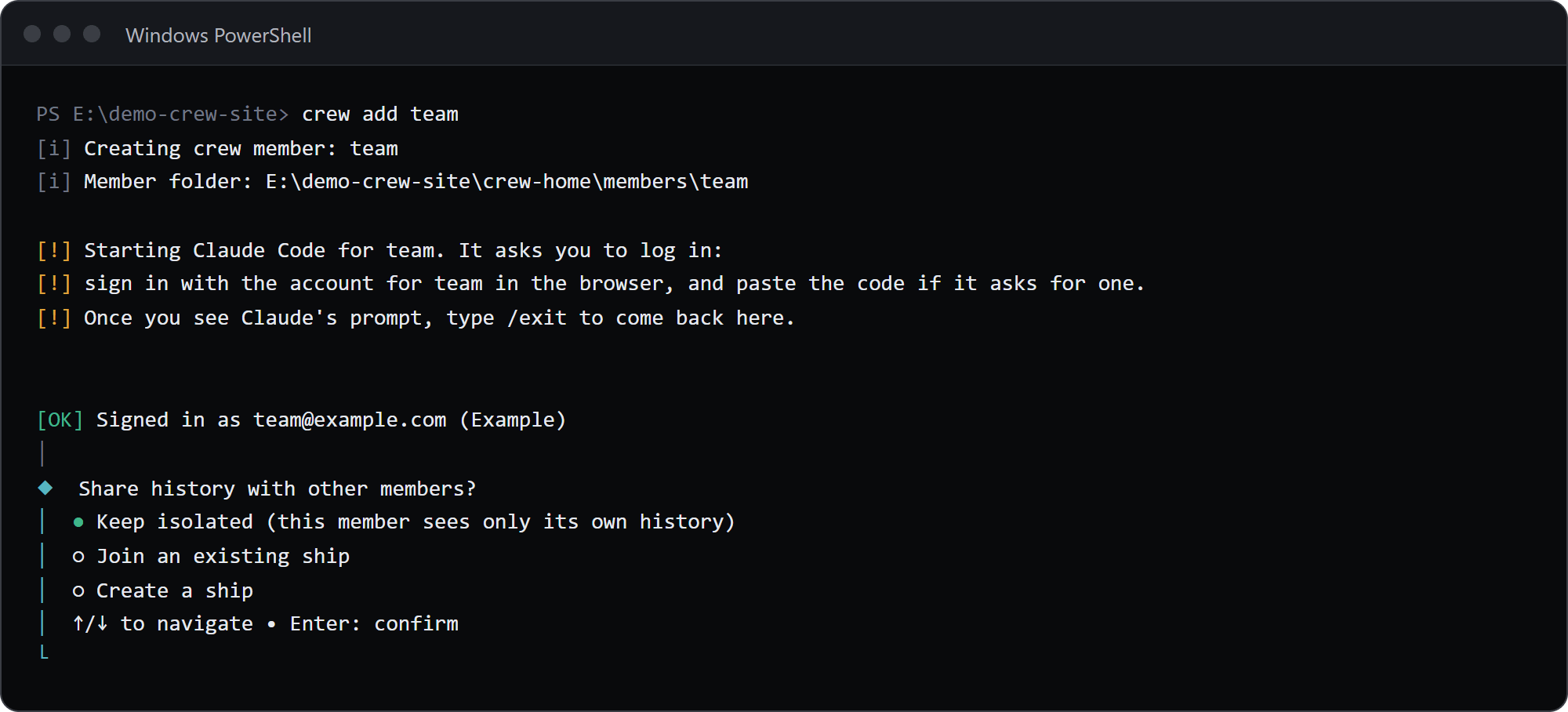
Section titled “4. Add your crew members”crew add maincrew makes the folder %USERPROFILE%\.crewrota\members\main and starts Claude Code inside it, so you sign in with Claude Code’s own login in your browser.
Paste the code if it asks for one, and type /exit once you see Claude’s prompt.
Your main ~/.claude login is not touched.
Then crew shows the email and organisation it logged in as, and asks one question:
- “Share history with other members?” Keep it isolated (the default), join an existing ship, or create a ship.
Every member gets your skills, agents, commands, plugins, settings and CLAUDE.md from ~/.claude before every launch, and its MCP servers from its ship (crew ship mcp list <ship>).
Add as many members as you have accounts, for example crew add side.
For an account that signs in with single sign-on, use crew add side --sso; --email <address> passes that email to Claude Code’s login.
crew use <member> also offers to create a member that does not exist yet.
If two members sign in to the same account, crew warns you; see Add and manage crew members.
5. Share history, then start Claude
Section titled “5. Share history, then start Claude”To let two members see each other’s sessions (--resume), put them on one ship:
crew ship join main homecrew ship join side homemain shares history through ship home.crew asks before it creates a ship that does not exist, and copies each member’s existing history into it.
Then start Claude:
crew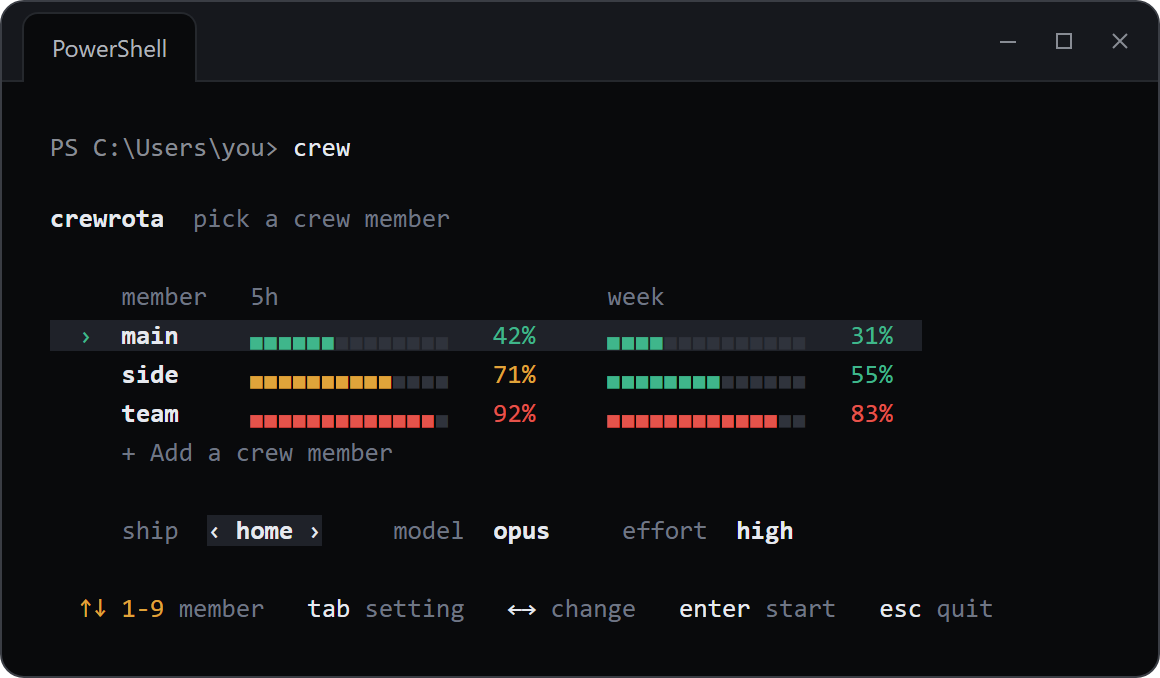
The menu shows your members with their 5-hour and weekly bars, and the ship, model and effort below them.
Up and down (or 1 to 9) pick the member, tab picks the ship, the model or the effort, left and right change it, enter starts, esc quits; each member starts on its own ship and its last model and effort.
The bars show each member’s last reading and fill after its first session. Each time the menu opens it reads them fresh with quota-axi, one call per member side by side, and sends no message; crew config refresh off stops that, and the bars then show each member’s last reading.
crew warmup sends each member one short Haiku message, which starts its 5-hour window if none is running. It is the only crewrota command that sends a message.
Or skip the menu with crew main (short for crew run main), or make one member the default with crew use main and run crew run.
Claude’s own flags go after --: crew main -- --resume <id>.
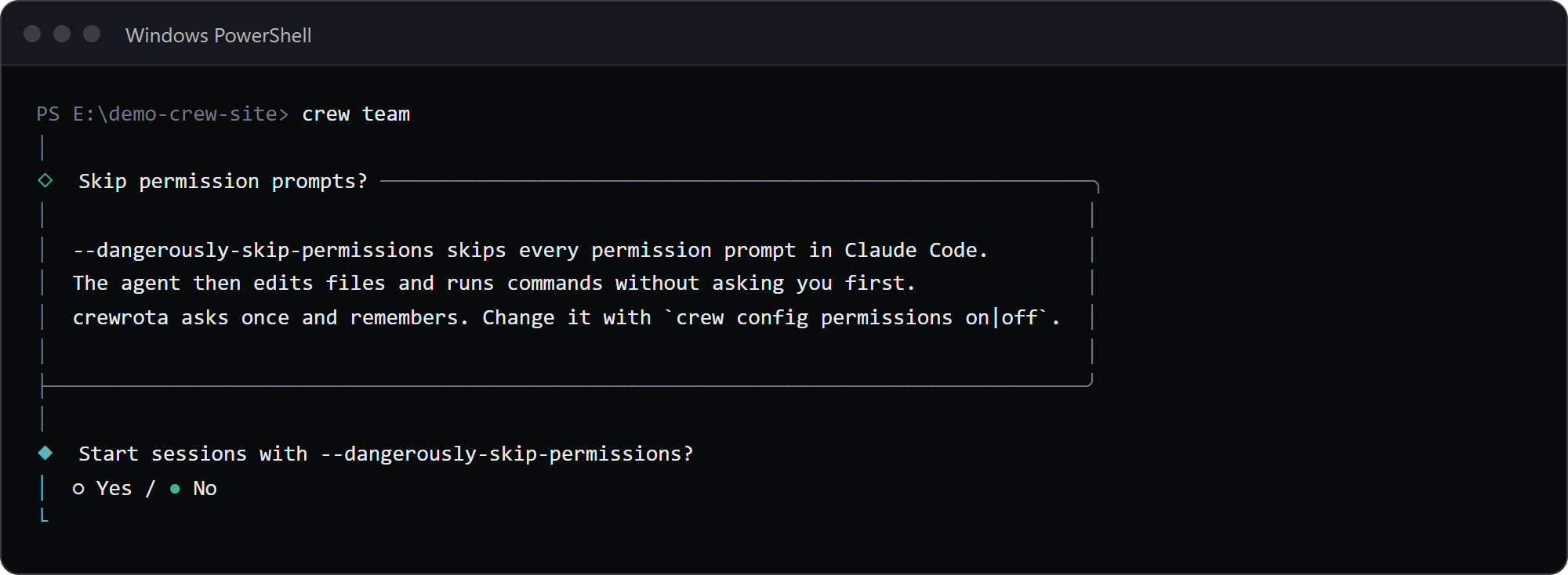
At your first launch crewrota asks once whether sessions should start with --dangerously-skip-permissions (default no):
If something is missing, crew doctor says what and how to fix it.
6. Keep the bars on your desktop
Section titled “6. Keep the bars on your desktop”crew widget # open it; drag it anywhere, the bolt warms up every member, right-click to refresh or quitcrew widget close # close itcrew widget startup on # open it at every login (off removes that)The widget is a small always-on-top window with every member’s 5-hour and week bars, read from the same files as crew quota.
Its footer shows today’s tokens across the crew (from the members’ session transcripts), the clock and a link to a coding-music stream.
It needs Python 3 with Tk; the python.org installer includes both.
More in Keep usage on your desktop with the widget.
7. Install the default tools and the plugin
Section titled “7. Install the default tools and the plugin”crew setupIt lists each tool (the lavish, gh-axi and quota-axi skills, treehouse, Playwright CLI, and the Playwright MCP entry for each ship) with the exact command it runs and where it lands, then asks once.
Anything already installed is skipped.
It also asks whether lavish-axi may send usage telemetry, and checks gh auth status without signing you in.
crew doctor shows what is still missing.
Then add the plugin in your main Claude Code (not inside a member; members pick it up at their next launch):
claude plugin marketplace add pasindu-premachandra/crewrotaclaude plugin install crewrota@crewrota8. Set up a project and run firstmate
Section titled “8. Set up a project and run firstmate”In the project’s folder:
crew initIt writes .claude\ (crewrota.json, a short CLAUDE.md if the project has none, memories\, skills\, tasks\INDEX.md) and never overwrites a file.
Then start Claude in that folder and hand it a task: /firstmate <what you want done>.
9. Moving to a new machine
Section titled “9. Moving to a new machine”On the old machine:
crew backup --passwordIt writes one zip, for example crewrota-backup-20261026-0905.zip, with your ships, members, settings, skills and every project’s .claude (tasks, evidence, memories), encrypted with the password you type twice. Add --dry-run first to see what goes in.
Logins are never in it.
Copy the zip to the new machine, install crewrota there (steps 1 to 3), then:
crew restore .\crewrota-backup-20261026-0905.zip --passwordThe restore renames your projects’ session folders when your user folder differs; add --map E:\Projects=D:\work for projects that moved elsewhere, and --clone to fetch each repo’s code from GitHub.
It ends with one crew login <member> line for each member; run each one to sign that member in again.
More in Move your crew to a new machine.
VS Code shortcuts (optional)
Section titled “VS Code shortcuts (optional)”crew shortcut add site --member main --folder E:\code\site --hotkey CTRL+ALT+Ccrew shortcut listcrew shortcut open siteA shortcut opens a folder in VS Code and runs crew <member> there as a task, in an editor tab; when the session ends, the tab stays open as a shell in that folder.
add writes site.code-workspace under %USERPROFILE%\.crewrota\shortcuts and a site entry in the Start Menu, which the hotkey also opens; VS Code brings back that window’s layout and its other terminals each time, even when only that window was closed.
Change one with crew shortcut set, remove one with crew shortcut remove; crew rename and crew drop carry a member’s shortcuts along.
More in Open a folder as a member from VS Code.