crew ship reference
A ship is a folder in <crew home>/ships/<ship> that several members share: projects, todos, file-history, session-env and shell-snapshots, plus the ship’s own mcp.json.
crew ship join <member> <ship> links a member’s five folders to the ship, so its history, memory and MCP servers are the ship’s.
Every subcommand runs without a terminal except join to a ship that does not exist and delete without --yes.
Ship names follow the member name rule: lowercase letters, digits and hyphens, starting with a letter, at most 32 characters.
A wrong subcommand prints Usage: crew ship create|list|rename|delete|join|leave|mcp|import (see crew --help) and exits with 1.
crew ship create
Section titled “crew ship create”Make an empty ship.
crew ship create <ship>$ crew ship create home
Created ship home: E:\demo-crew-pages2\crew-home\ships\home\projects
[exit code 0]- It makes the five folders and
mcp.json, seeded with a copy of themcpServersin your~/.claude.json(an empty list when you have none). On macOS and Linuxmcp.jsonis readable only by you (mode 0600). - An existing ship fails with
Ship <ship> already exists.
crew ship list
Section titled “crew ship list”Ships and their members.
crew ship list$ crew ship list
base: main, side E:\demo-crew-pages2\crew-home\ships\base\projects
[exit code 0]With no ships it prints No ships yet. Make one with: crew ship create <ship>.
crew ship join
Section titled “crew ship join”Share a member’s history through a ship.
crew ship join <member> <ship>$ crew ship join main home
main shares history through ship home.
[exit code 0]- Each of the member’s five folders becomes a link to the ship’s folder: a junction on Windows, a symbolic link elsewhere.
- What the member already had is never deleted. A folder with files is moved aside to
<folder>.before-crewrota-<yyyymmdd>and copied into the ship; a file whose name is taken in the ship arrives as<name>.incoming-<n><ext>. The note reads[i] Copied this member's history into the ship. The original folder is kept at <folder>. - A ship that does not exist: in a terminal it asks
Ship <ship> doesn't exist. Create it? (Y/n); without one it fails:
$ crew ship join team crew2
crewrota: Ship crew2 doesn't exist. Creating it needs a terminal. Make it first with: crew ship create crew2
[exit code 1]
crew ship leave
Section titled “crew ship leave”Make a member isolated again.
crew ship leave <member>$ crew ship leave side
[i] side is isolated again. The ship's files stay in E:\demo-crew-inventory\crew-home\ships\home
[exit code 0]Each link is replaced by an empty folder; the ship keeps every file.
A member on no ship prints [i] <member> is not linked to a ship.
crew ship rename
Section titled “crew ship rename”Rename a ship; its members follow.
crew ship rename <old> <new>$ crew ship rename home base
Renamed ship home to base.
[exit code 0]It renames the folder, saves the new name for each member, then re-points each member’s links.
It fails when <old> does not exist or <new> is taken, and on Windows when a running session holds a file open in the ship.
crew ship delete
Section titled “crew ship delete”Move a ship’s folder to removed/.
crew ship delete <ship> [--force] [--yes]| Flag | Default | What it does |
|---|---|---|
--force |
off | Delete a ship that still has members; they are unlinked first and become isolated |
--yes |
off | Do not ask; needed without a terminal |
$ crew ship delete base --force --yes
Folder: E:\demo-crew-inventory\crew-home\ships\baseMembers linked: main (unlinked first; they become isolated)Session files: 0Deleted ship base. Its folder is kept at E:\demo-crew-inventory\crew-home\removed\ship-base-20261104-1826
[exit code 0]- Without
--force, a ship with members fails:Ship <ship> still has members aboard: <members>. Run crew ship leave <member> for each first, or pass --force. - Without
--yesit asksDelete ship <ship>? Its folder is moved to <crew home>/removed(default No); without a terminal it fails withConfirming the deletion needs a terminal. Pass --yes to delete without asking. - The folder goes to
removed/ship-<ship>-<yyyymmdd-hhmm>. Nothing is deleted.
crew ship import
Section titled “crew ship import”Copy history and session folders from another folder into a ship.
crew ship import <ship> --from <folder>| Flag | Default | What it does |
|---|---|---|
--from <folder> |
required | The folder to read. Each of the five folder names is looked for at <folder>/<name> and at <folder>/continuity/<name> |
$ crew ship import home --from E:/demo-crew-pages2/old-history
projects         1 copied, 0 brought up to date, 0 already there, 0 kept beside a changed copytodos            0 copied, 0 brought up to date, 0 already there, 0 kept beside a changed copyImported into ship home. E:/demo-crew-pages2/old-history was only read.
[exit code 0]- The source is only read.
- New files are copied, the same file is skipped, a transcript that only grew in the source is brought up to date, and a file that changed on both sides arrives beside the ship’s copy as
<name>.incoming-<n><ext>. - Run it again to bring in what is new.
- Errors:
Ship <ship> doesn't exist. Make it first with: crew ship create <ship>,<folder> is not a folder, and<folder> holds none of: projects, todos, file-history, session-env, shell-snapshots.
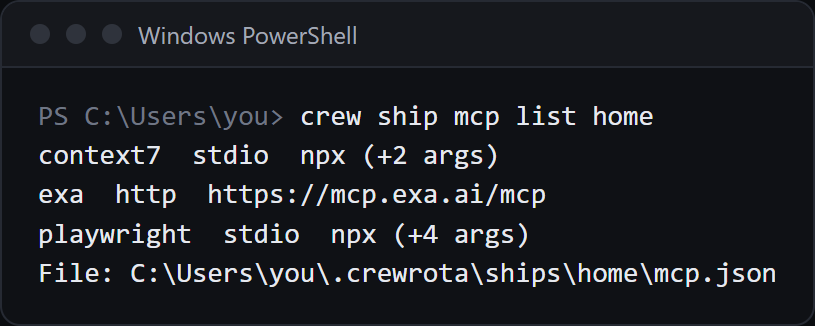
crew ship mcp list
Section titled “crew ship mcp list”The ship’s MCP servers, without their keys.
crew ship mcp list <ship>$ crew ship mcp list home
docs http https://mcp.example.com/mcpfiles stdio npx (+3 args)File: E:\demo-crew-pages2\crew-home\ships\home\mcp.json
[exit code 0]Each line is the name, the type and the URL without its query string, or stdio, the command and how many arguments it has.
Headers, environment values and URL queries are never printed, since that is where keys live.
An empty ship prints Ship <ship> has no MCP servers. Add one with: crew ship mcp add <ship> <name> ....
crew ship mcp add
Section titled “crew ship mcp add”Add an MCP server to a ship. Its members get it at their next launch.
crew ship mcp add <ship> <name> --url <url> [--transport <type>] [--header "Name: value"]...crew ship mcp add <ship> <name> [--env KEY=value]... -- <command> [args]crew ship mcp add <ship> <name> --from <.claude.json>| Flag | Default | What it does |
|---|---|---|
--url <url> |
none | A remote server at this URL |
--transport <type> |
http |
The server’s type in mcp.json, for example sse; only with --url |
--header "Name: value" |
none | A request header; repeat it for more. Only with --url |
--env KEY=value |
none | An environment variable for a local server; repeat it for more |
-- <command> [args] |
none | A local (stdio) server: the command and its arguments |
--from <file> |
none | Copy the server named <name> from another config file’s mcpServers, keys included; it must be the only flag |
A remote server with a header:
$ crew ship mcp add home docs --url "https://mcp.example.com/mcp?key=SECRET" --header "Authorization: Bearer EXAMPLE"
Added docs to ship home. Its members get it at their next launch.
[exit code 0]
A remote server with another transport:
$ crew ship mcp add home events --url https://mcp.example.com/sse --transport sse
Added events to ship home. Its members get it at their next launch.
[exit code 0]
A local server:
$ crew ship mcp add home files --env ROOT=E:/demo-crew-pages2/proj -- npx -y @example/files-mcp E:/demo-crew-pages2/proj
Added files to ship home. Its members get it at their next launch.
[exit code 0]
A server from another config file:
$ crew ship mcp add home docs --from E:/demo-crew-pages2/other.claude.json
Added docs to ship home. Its members get it at their next launch.
[exit code 0]- Adding a name that is already there replaces that server.
- A header written in your shell needs quotes:
--header "Authorization: Bearer <key>". - Errors:
Give either --url or a command after --, not both.,Give --url <url> for an HTTP server, or -- <command> [args] for a local one.,--header takes "Name: value".,--env takes KEY=value.,<flag> needs a value.,Could not read <file>: <reason>and<file> has no MCP server <name>. - At every launch the member’s own
mcpServersin its.claude.jsonis replaced by the ship’s list, so a server added inside a member withclaude mcp add --scope useris gone at its next launch. See Give a ship’s members the same MCP servers.
crew ship mcp remove
Section titled “crew ship mcp remove”Remove one server from a ship. Its members lose it at their next launch.
crew ship mcp remove <ship> <name>$ crew ship mcp remove home files
Removed files from ship home. Its members lose it at their next launch.
[exit code 0]A name the ship does not have fails with Ship <ship> has no MCP server <name> (exit 1).
For every crew ship mcp subcommand, a ship that does not exist fails with Ship <ship> doesn't exist.